As soon as you have received the countersigned file of the certificate request (cer file) from PROXESS GmbH, you can activate your certificate. Activation means that you enable your system to assemble the parts of your certificate (pvk file and cer file) into a functional certificate (pfx file).
Step by step:
Start the PROXESS Administrator Console and mark the branch “PROXESS Administrator” in the console root. In the “Actions” menu, click “Certificates” and select the command Activate PROXESS system certificate.
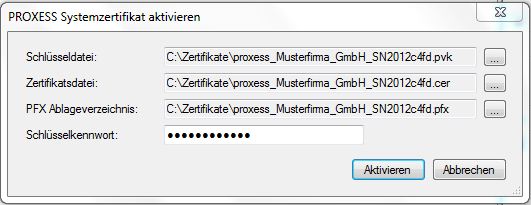
The following dialog box appears:
Fig.: Dialog field to activate the PROXESS system certificate
First select the storage location of the private key file (pvk file). When all the required files are in the same directory, the information for the PFX storage directory is entered automatically.
Enter the storage place for the cer file countersigned by PROXESS on the certificate file line and select the Activate command. You will get a confirmation that the activation was completed successfully.
Directory content after successful activation:
|
proxess_ExampleCompany_GmbH_SN2012c4fd.req* |
Request file of the PROXESS system certificate. This file was sent to PROXESS GmbH in the preceding step “Request PROXESS system certificate”. |
|
proxess_ExampleCompany_GmbH_SN2012c4fd.pvk* |
Private key file. This file is the main cryptographic secret for creating the supervisor smartcards and must therefore be stored securely. |
|
proxess_ExampleCompany_GmbH_SN2012c4fd.cer* |
Individual PROXESS system certificate. PROXESS GmbH has transmitted this file to you. |
|
proxess_ExampleCompany_GmbH_SN2012c4fd.pfx* |
Result file for the activation. This is the basic file to create supervisor smartcards and must therefore be stored securely. |
* Sample file names
Warning information
|
|
Unauthorized use of the files marked in red (.pvk and .pfx) can result in third parties gaining access to the system. You should therefore store these files in a secure location. |
You can install the PROXESS system certificate in the next step.
Also see:
Request PROXESS system certificate
Install PROXESS System certificate
